Shoplazza (known in Chinese as 店匠) is a global, cross-border e-commerce website-building SaaS platform. It helps merchants quickly create independent online stores and supports multiple languages, multiple currencies, global payments, and logistics. With a rich selection of themes and app integrations, Shoplazza enables sellers to launch and scale cross-border online businesses efficiently and at low cost.
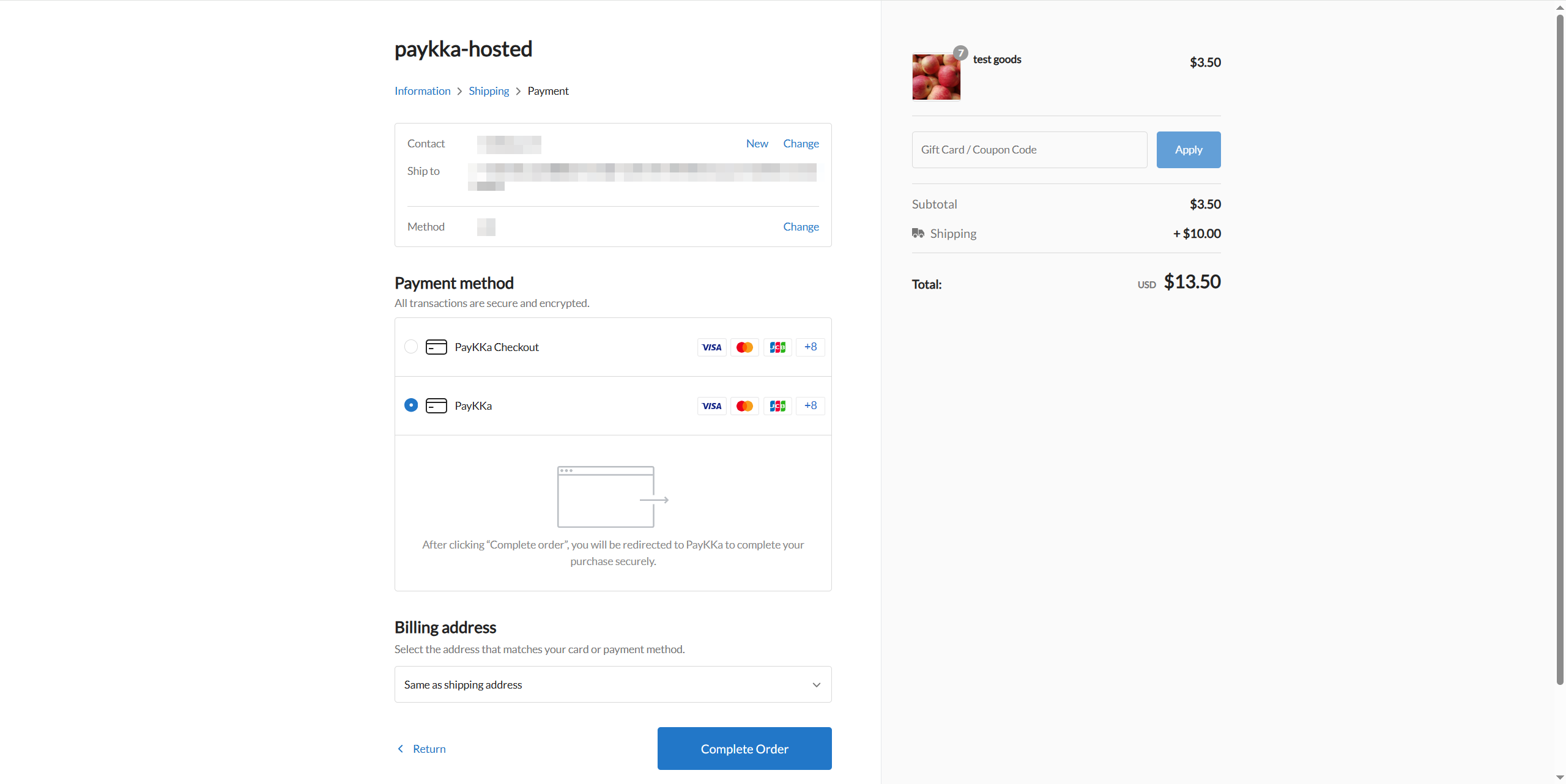
App Name: PayKKa
The application currently allows you to offer payments through 30+ local payment methods as well as major card networks.
After clicking Complete Order, a pop-up window will open to display the checkout page, where customers can choose their preferred payment method.
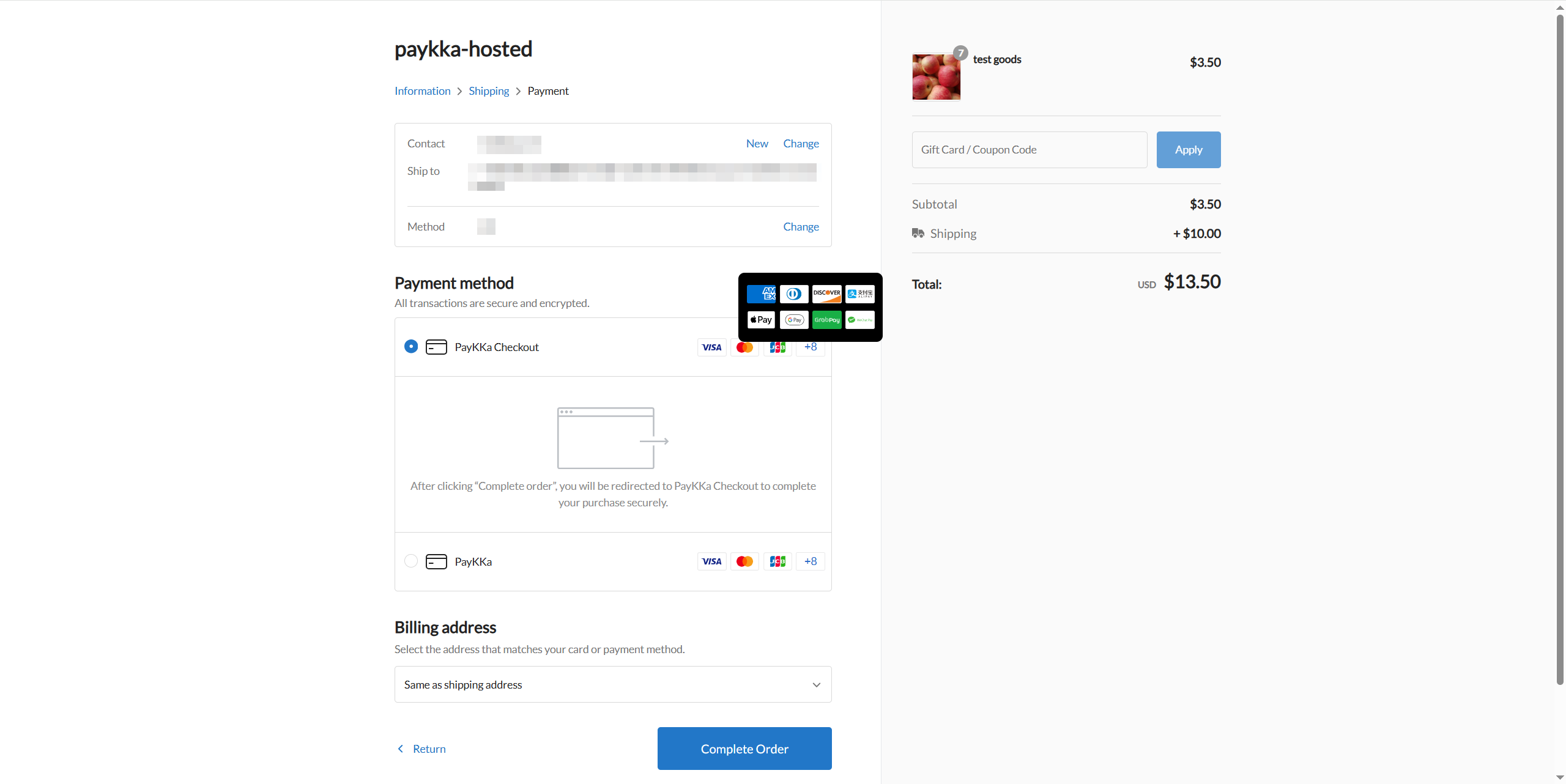
App Name: PayKKa Checkout
The application currently allows you to offer payments through 30+ local payment methods as well as major card networks.
After clicking Complete Order, users will be redirected to the checkout page, where they can choose their preferred payment method.
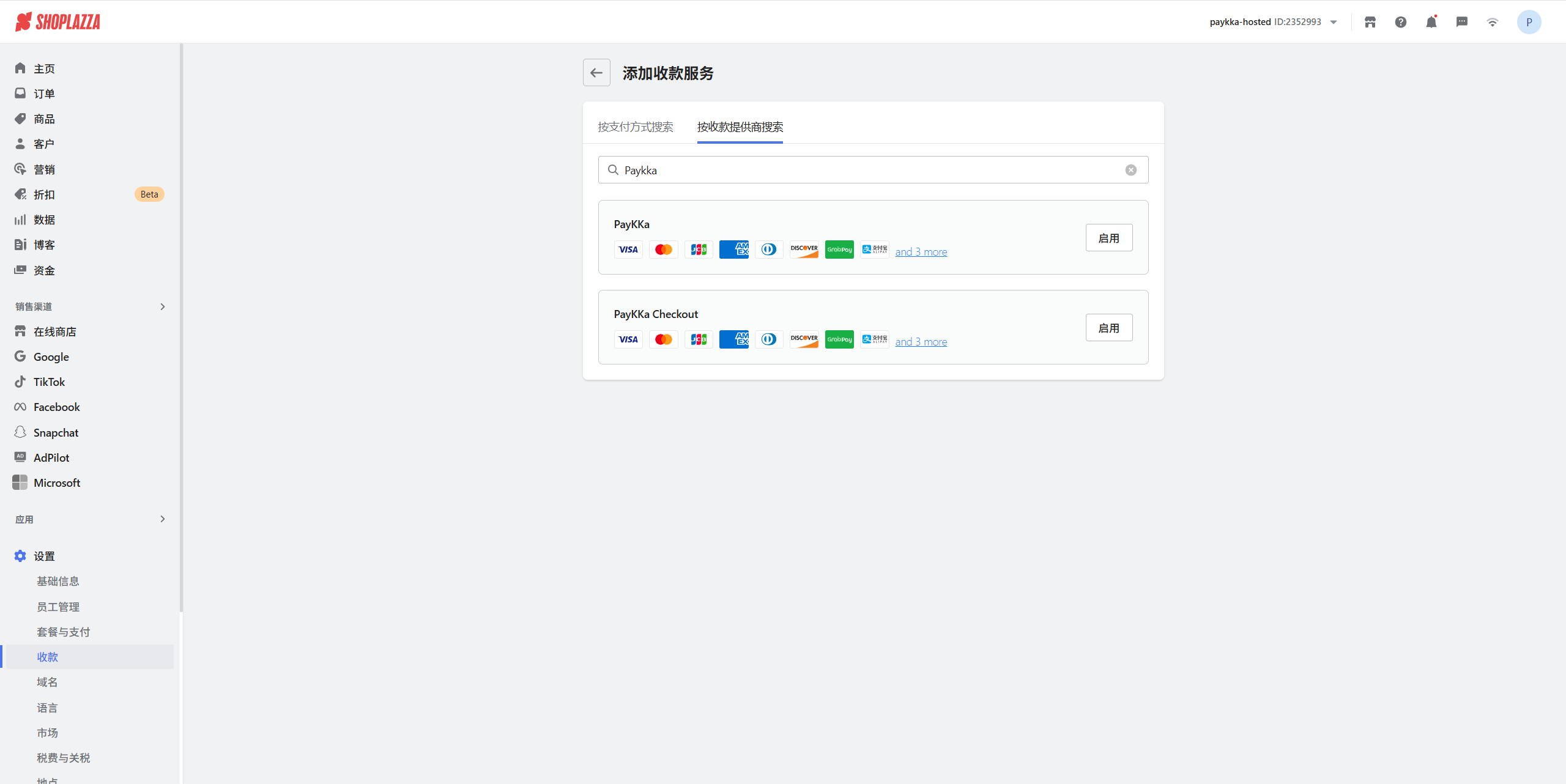
- Go to the store admin homepage -> Settings -> Payments -> Manage Payment Providers -> Add Payment Service -> Search by Payment Provider.
- PayKKa Payment App: Select Add Payment Service, click Search by Payment Provider, type
"PayKKa"in the search bar, and click Enable. - PayKKa Checkout Payment App: Select Add Payment Service, click Search by Payment Provider, enter
"PayKKa Checkout"in the search bar, and click Enable.
If the application cannot be found in the search, provide your store ID to the PayKKa team for quick assistance.
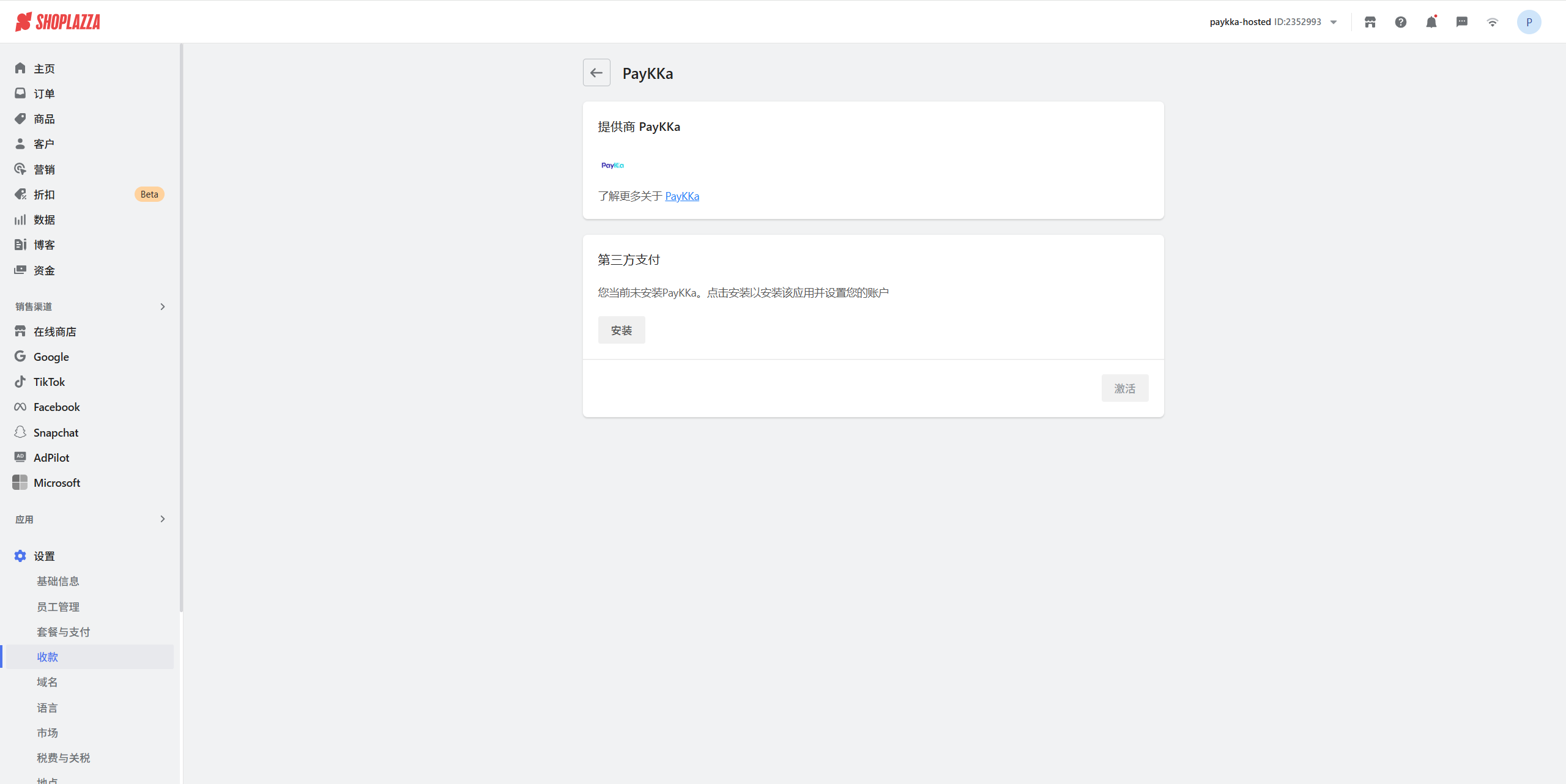
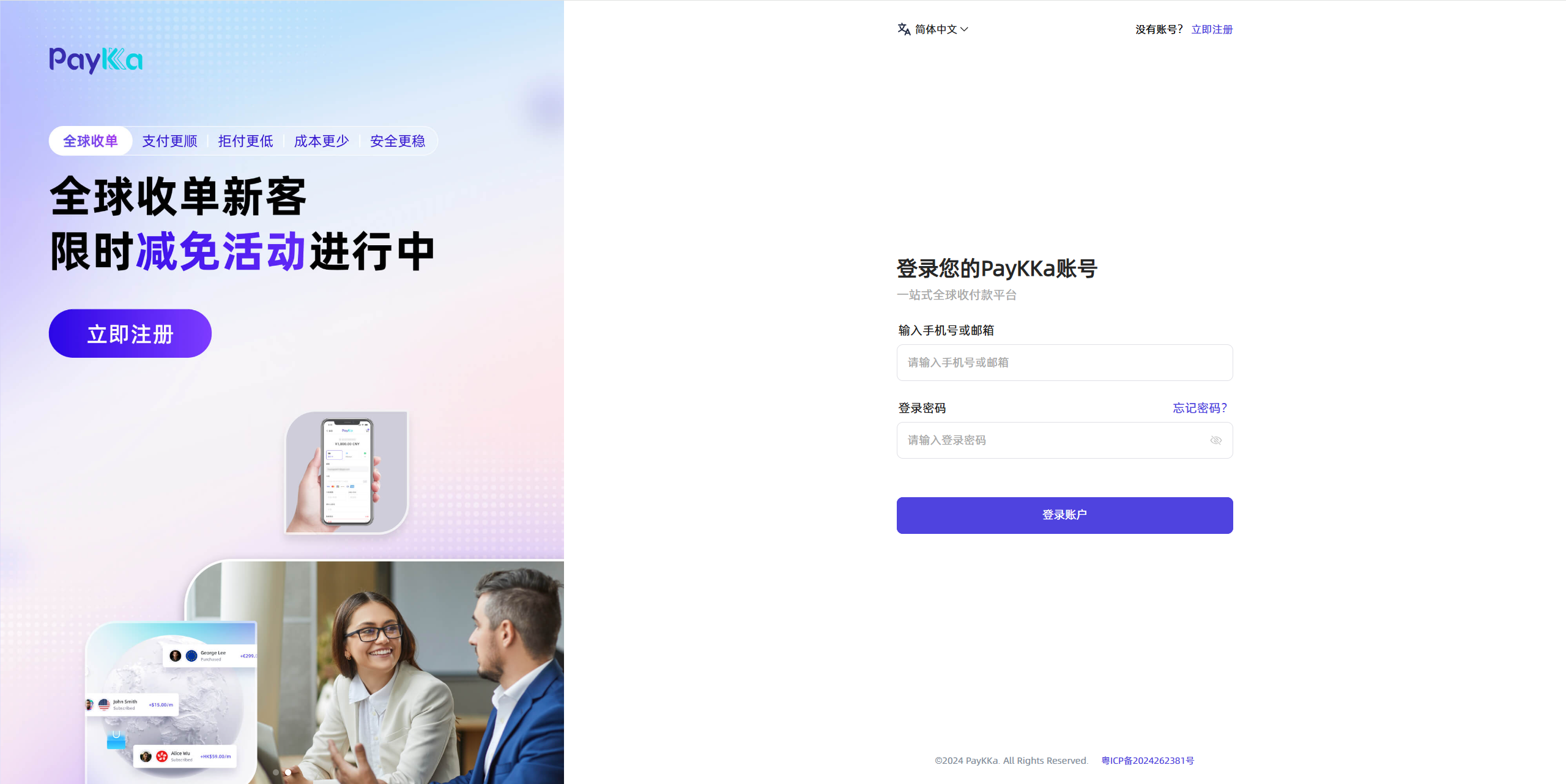
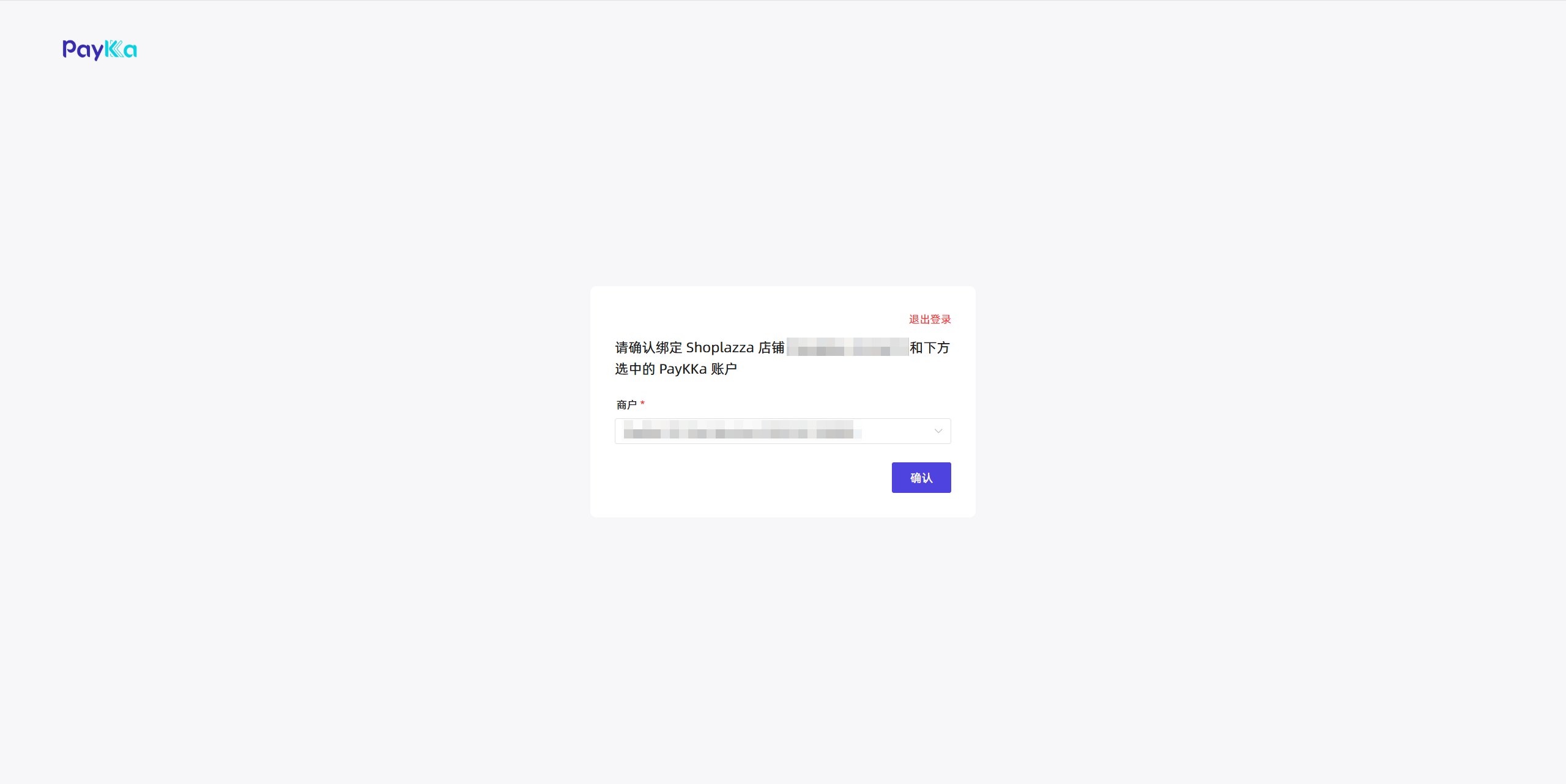
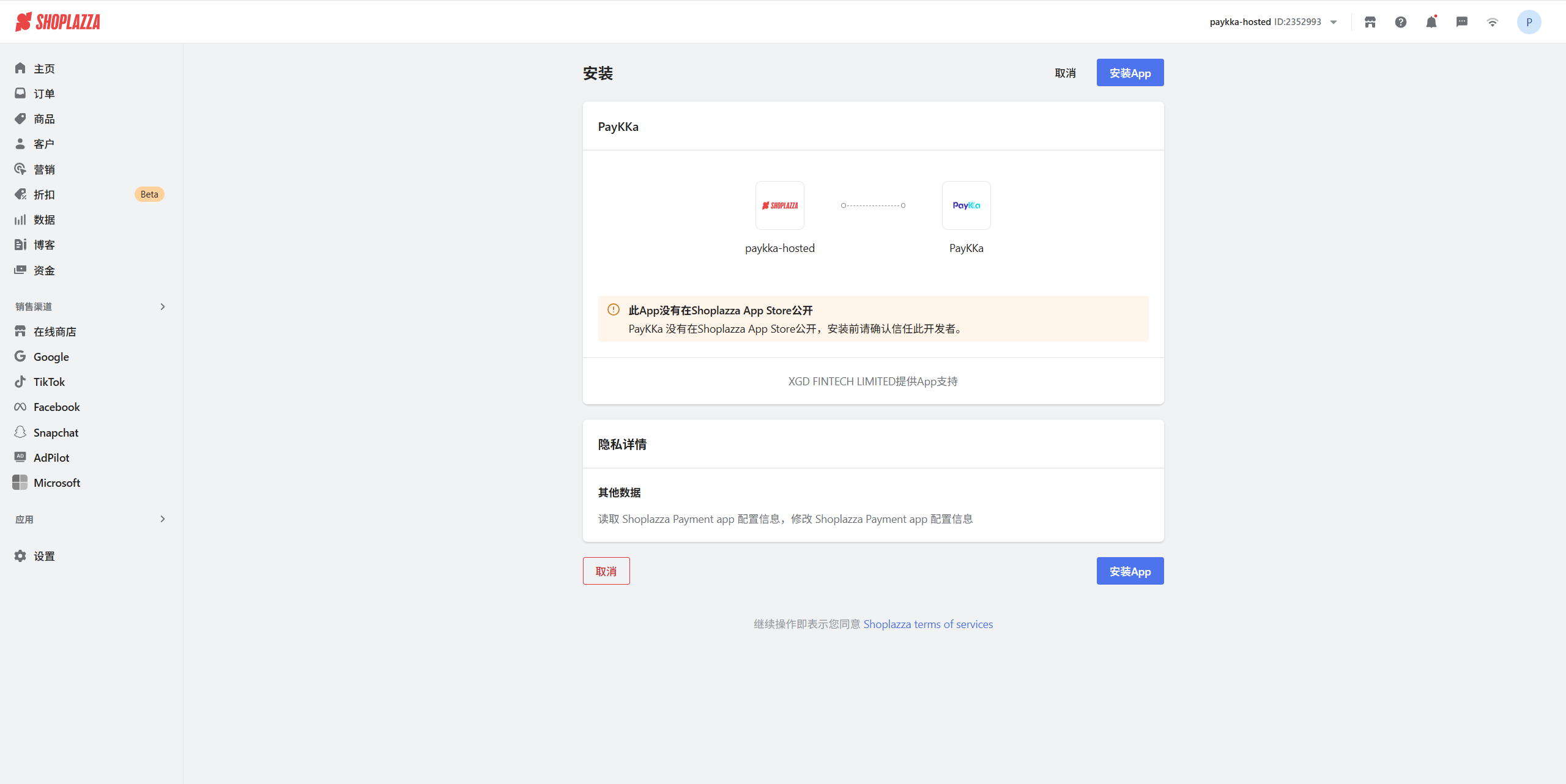
After clicking Install, you will be redirected to the PayKKa login page to continue the authorization process. Simply log in (or register if you don’t have an account). A pop-up will appear prompting you to bind the required merchant—select an available merchant to complete the installation.
- Log in or register on the merchant platform and ensure that real-name verification and merchant onboarding have been completed.
- Select the merchant to be bound to the current store and submit.
- After completing the authorization, click Install App.
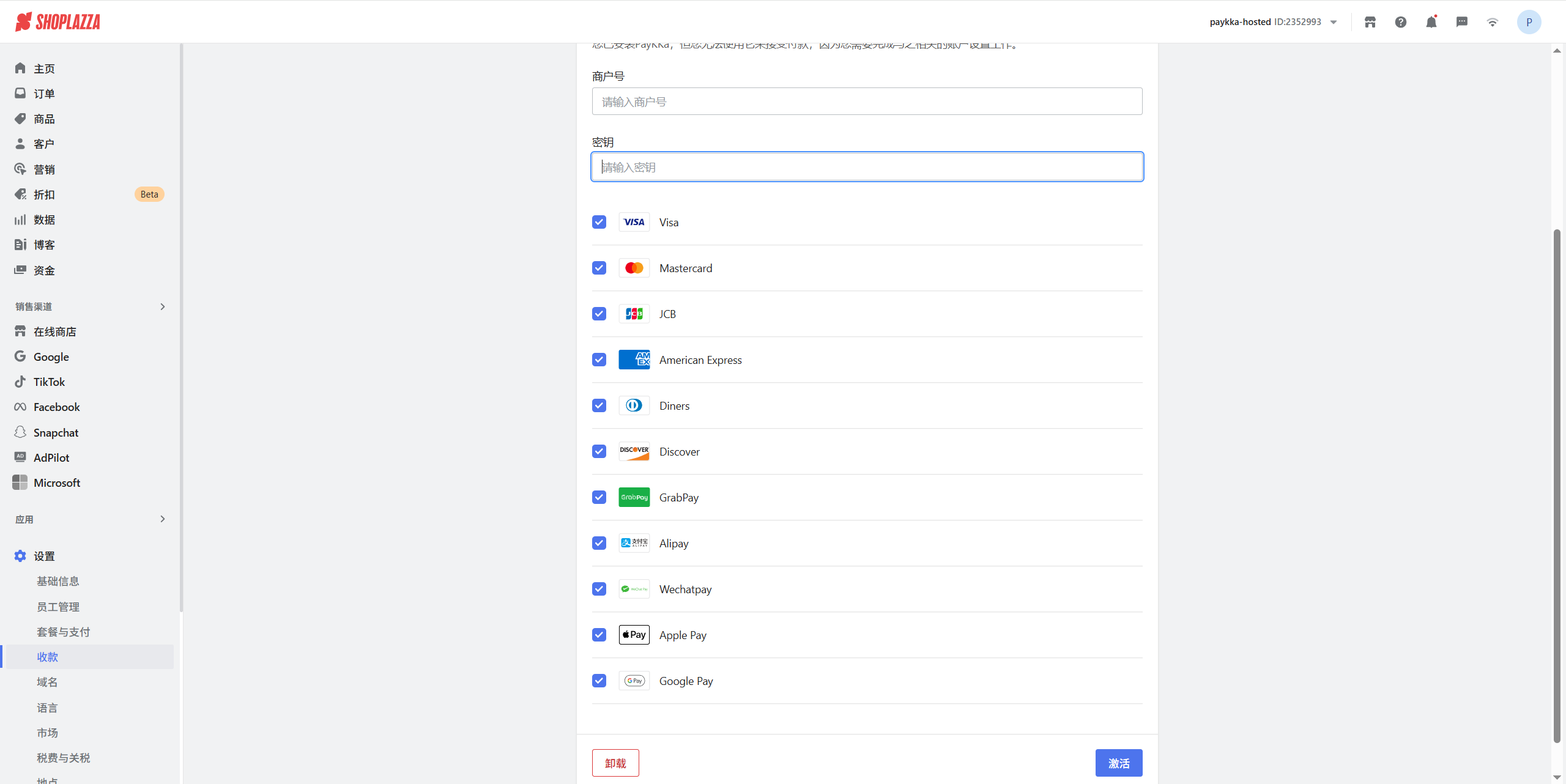
- After installation, you need to activate the app by clicking Activate at the bottom right corner.
To activate, you need to enter the merchant ID and public key provided by PayKKa on the Shoplazza platform. Please log in to the PayKKa merchant platform to obtain this information.
| Activation Parameters | Source |
|---|---|
| Merchant number | PayKKa Merchant Platform/Merchant Platform/Merchant Management, select the merchant ID that needs to be associated |
| Private Key | PayKKa Merchant Platform/Settings (top right)/Permissions & Security/PayKKa Public Key, where you can see the public key |