PayKKa for WooCommerce payment plugin is a payment gateway solution specifically designed for the WooCommerce e-commerce platform, supporting multiple payment methods including credit cards and e-wallets. The plugin aims to provide merchants with secure and convenient payment processing services while offering customers a smooth checkout experience.
- Support for multiple payment methods (credit/debit cards, e-wallets, etc.)
- Secure payment processing, compliant with PCI DSS standards
- Seamless integration with WooCommerce checkout process
- Support for multiple currencies and languages
- Real-time transaction status updates
- Detailed transaction records and reports
- Install WordPress, WooCommerce
System Requirements
- PHP version 8.0 or higher, recommended version 8.0
- WordPress version 6.0 or higher, recommended version 6.7.2
- WooCommerce version 9.0.0 or higher, recommended version 9.7.6
Download the PayKKa for WooCommerce plugin.
- Find the plugin upload section in WordPress admin, click Upload Plugin.
- WordPress -> Plugins -> Add New -> Upload Plugin.
- Click install and activate the plugin.
Access the PayKKa for WooCommerce configuration page.
- WooCommerce -> Payments -> Standard Payments.
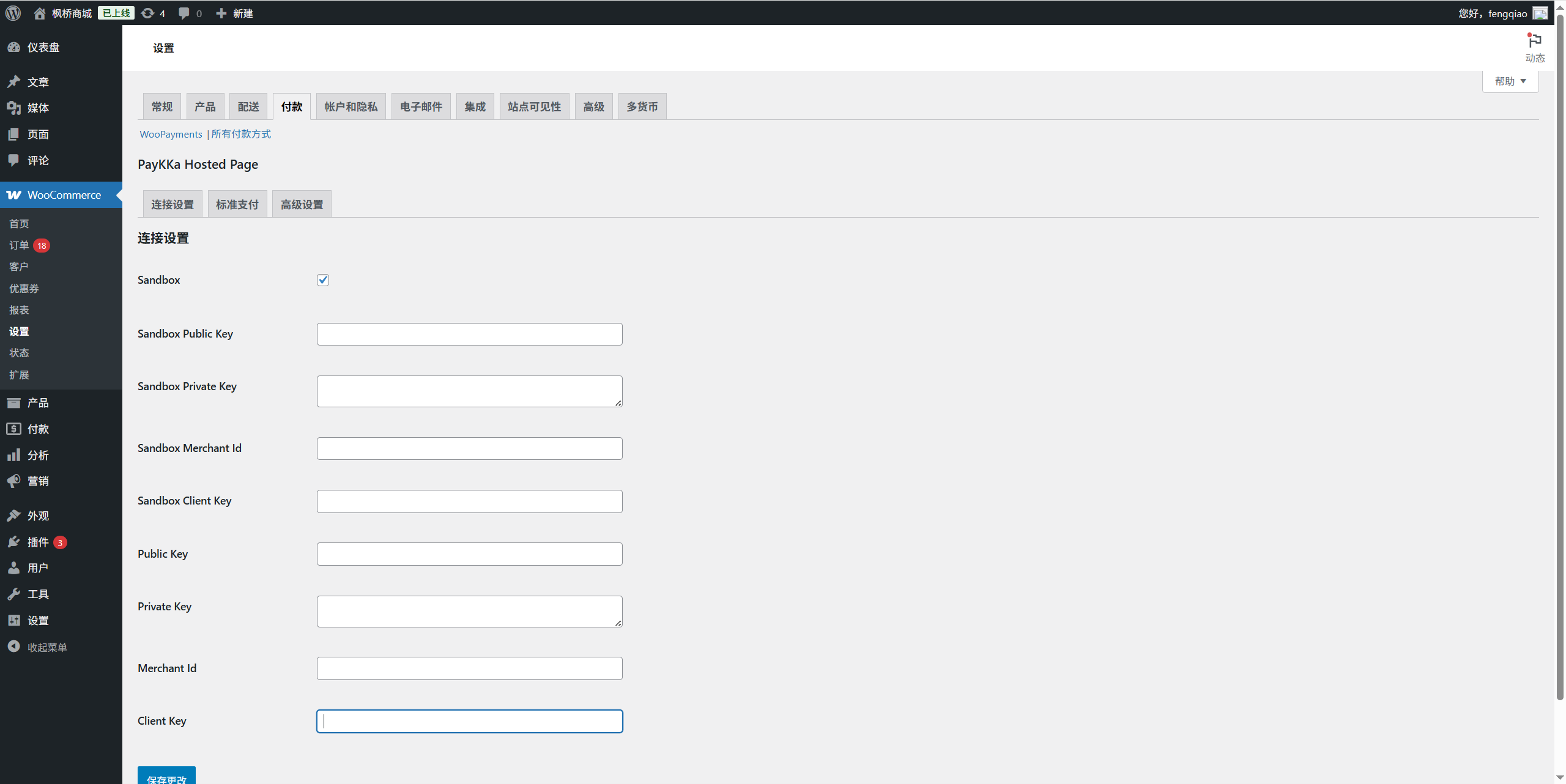
Set Merchant ID
- Access the merchant management backend.
- Click Merchant Management -> Merchant List -> Select Merchant ID.
Set Private Key
- Access the merchant management backend.
- Click Personal Center -> Settings -> Transaction Key.
- Select the transaction private key set during merchant registration.
Set Client Key
- Access the merchant management backend.
- Click Personal Center -> Settings -> Client Key.
- Click settings to view the client key.
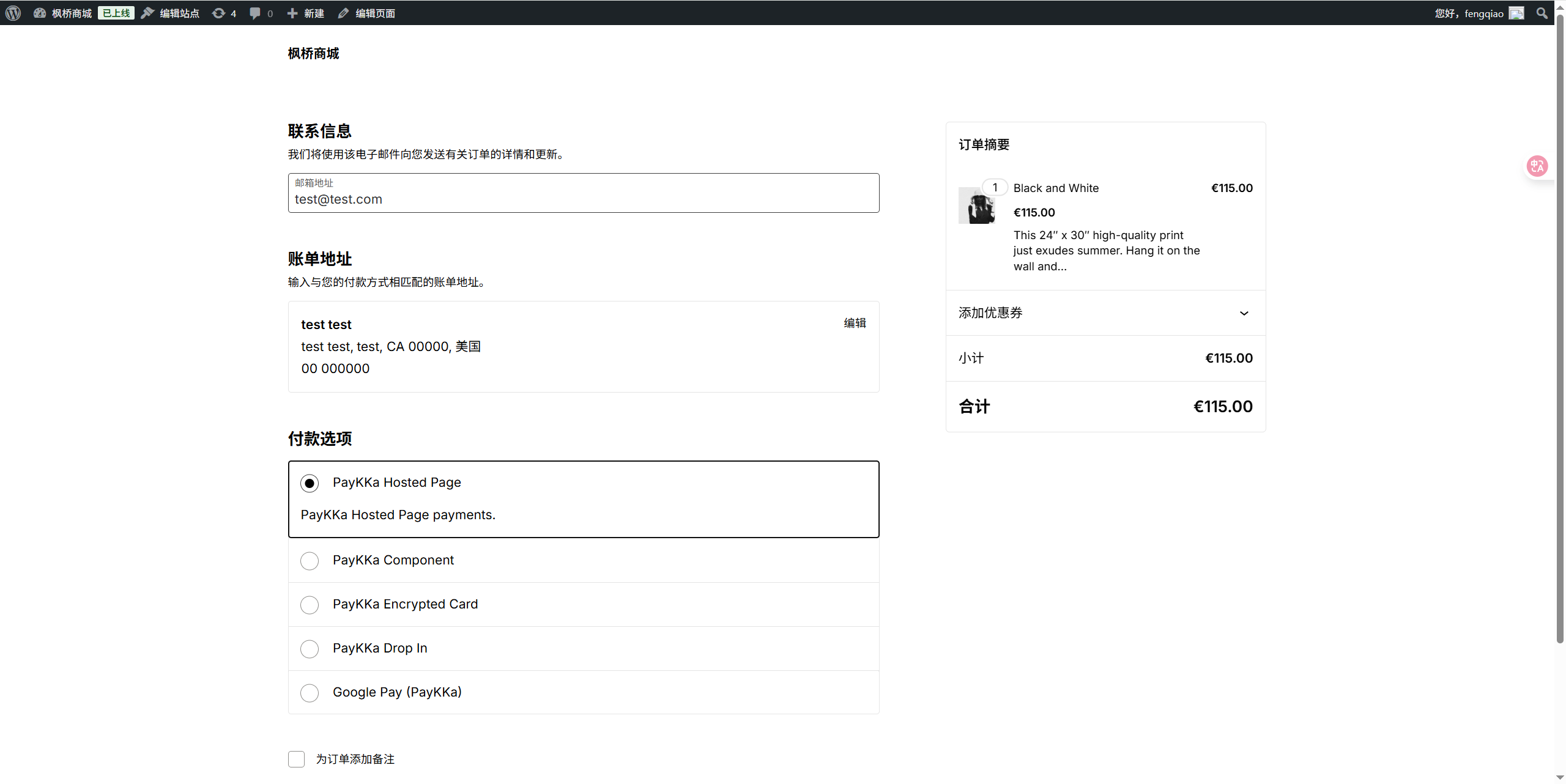
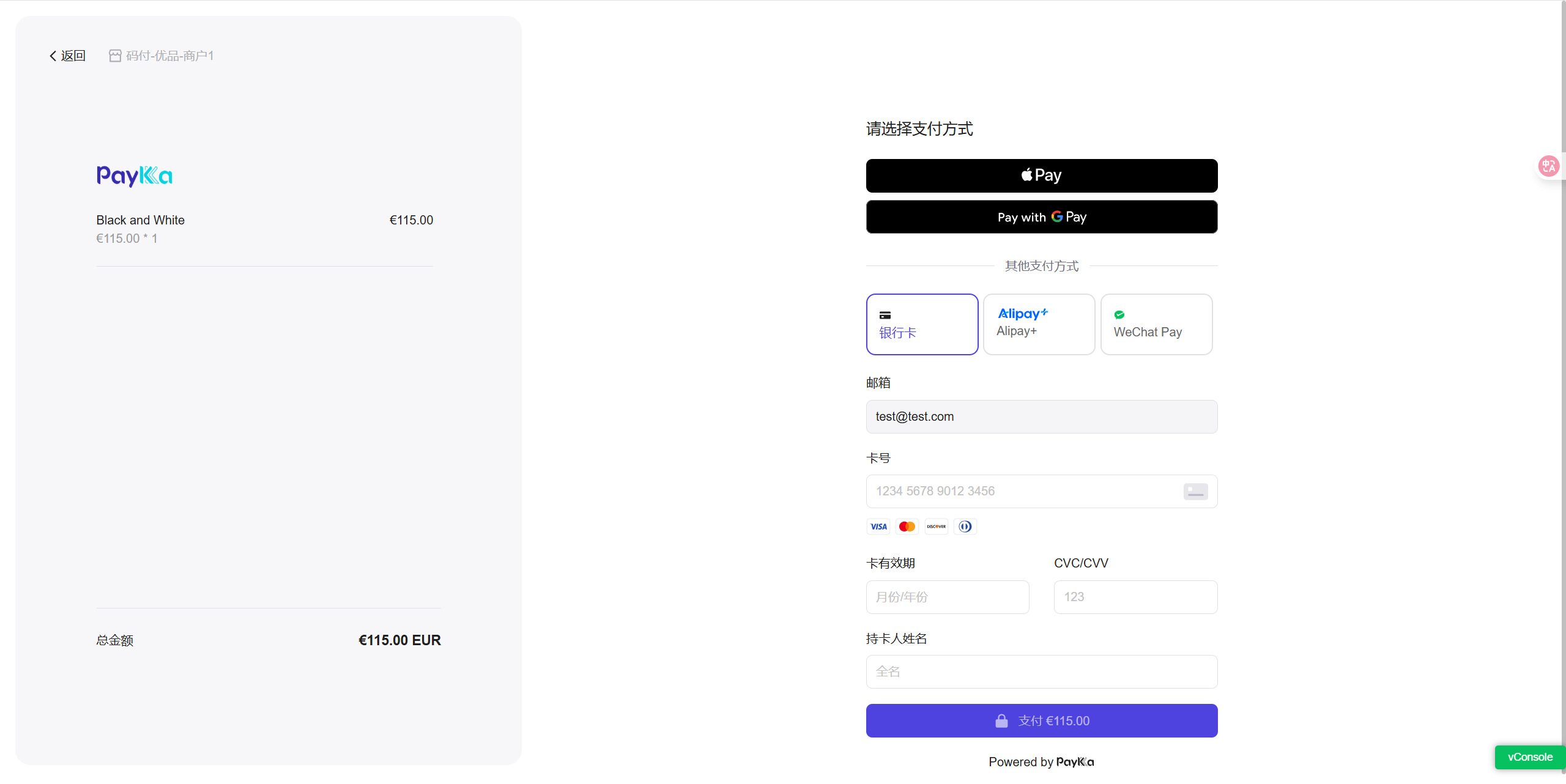
- PayKKa Hosted payment will redirect to the WooCommerce payment completion page.
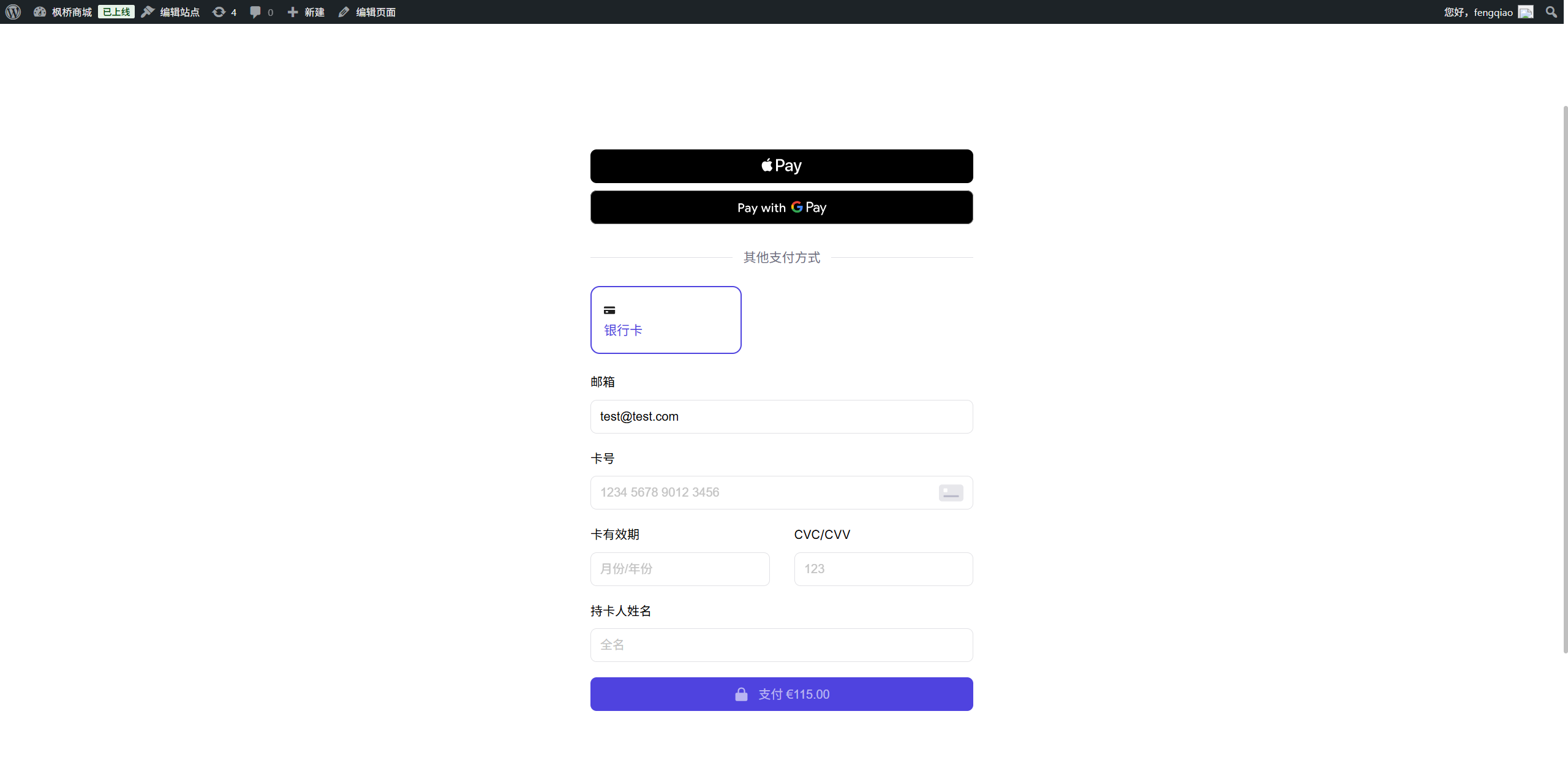
- Switch to Production Mode: After completing all tests, turn off Sandbox Mode.
- Payment Verification: Perform another payment process verification in the actual payment environment to ensure everything works properly.
- Regularly check for updates to the PayKKa plugin and upgrade as needed.
- Ensure both the system and plugin are kept up to date to avoid security risks.